 Campound
Capture a photo
Help guide · Updated June 25, 2026
The two entry points
Both photo tools live in the Map tools sidebar — turn it on from the More menu first, then look at the bottom group of icons.
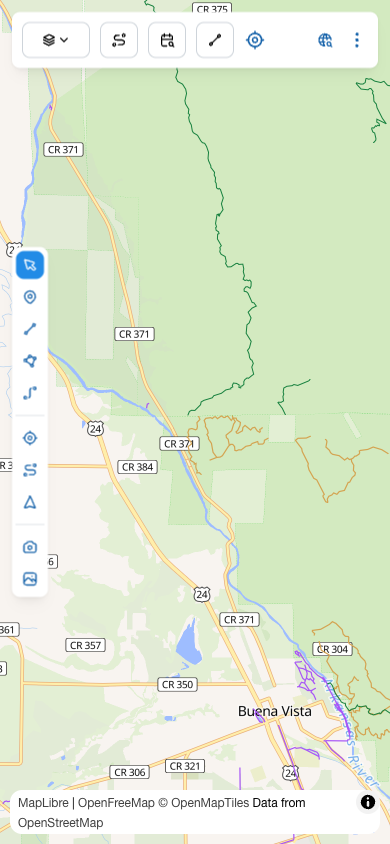
| Tool | What it does |
|---|---|
| Take photo | Opens the system camera. The shot is tagged with your current GPS location. |
| Add photo from library | Opens the system file picker. If the photo has GPS EXIF metadata, that location is used; otherwise the photo lands at the center of the current map view. |
Both tools go through the system file picker, which means Campound never asks for full Photo Library access — only the one photo you explicitly select. The camera does need the standard one-time camera permission.
How a photo gets stored
When you capture or import, the app keeps two copies:
- Thumbnail — a 320 × 320 square JPEG with a baked white border. Lives in local storage. Small enough to keep many of them around; what shows on the map and in the carousel.
- Full-resolution original — the unmodified bytes (HEIC, JPEG, PNG, whatever the source was). Lives in the app's private Filesystem at
photos/<id>.<ext>. Loaded on demand when you open a photo in the carousel and want to see it at full quality.
Both stay on your device. Photos don't sync to your account today — that's tracked as a planned feature; for now what you capture is yours, on this device.
How photos appear on the map
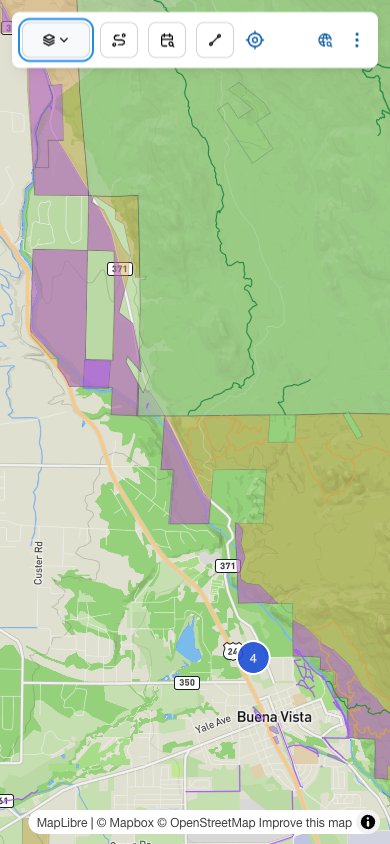
Turn on the My photos layer (in the Layers menu) to see them. Each photo becomes a tappable marker showing its thumbnail. When photos are close together, the marker collapses into a numbered cluster; zoom in and clusters split apart.
The carousel
Tap any photo marker — solo or cluster — to open the carousel. It opens with the thumbnail instantly, then quietly loads the full-resolution original in the background and swaps it in. Swipe left and right (or use the chevrons) to flip through photos in the same group. Tapping a cluster opens the carousel with all the photos in that cluster.
What's in the carousel:
- The photo itself, laid out for whatever aspect ratio you shot at.
- A per-slide delete button — removes the thumbnail from local storage, deletes the full-resolution original from the Filesystem, and refreshes the map layer.
- Position indicator showing which slide you're on (1 of 4, etc.).
Working with imported photos (.campound bundles)
If a friend sends you a .campound archive, the photos inside become part of your map — visible alongside your own captures with the same thumbnail markers. Bundled photos are flagged separately:
- They never upload to your account (they're not yours to claim).
- They can be filtered or hidden as a group via the My photos → Filter bundles panel in the Layers menu.
- You can fork one into your own dataset (copy the full-res into your own Filesystem path and re-tag it without the bundle marker) using the "Copy to my data" action — useful when you want to keep editing or re-export it as your own.