 Campound
Sharing data
Help guide · Updated June 25, 2026
Exporting your data
Open the More menu and pick Export points, lines & photos.
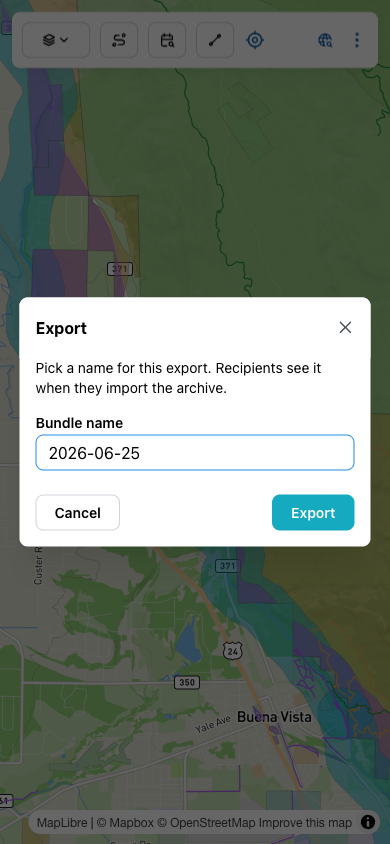
Tap Export and Campound packages everything you own — your points, lines, photos (full-resolution originals, not just thumbnails), and the Dictionary types they reference — into a single .campound file. The system share sheet opens so you can send it via Messages, Mail, AirDrop, Slack, Drive, or save it to Files.
Receiving someone's bundle
When a friend sends you a .campound file, opening it (tap in Messages / Mail / Files) hands it off to Campound. The app reads the bundle, adds its features and photos to your map, and stamps each one with the bundle's identifier so they stay grouped.
Imported data sits alongside your own data on the same map layers (My spots / My routes / My photos). But under the hood it's flagged differently — so it can be shown, hidden, or removed without affecting anything you created yourself.
The Manage imports screen
To see everything you've imported, open the More menu and pick Manage imports.
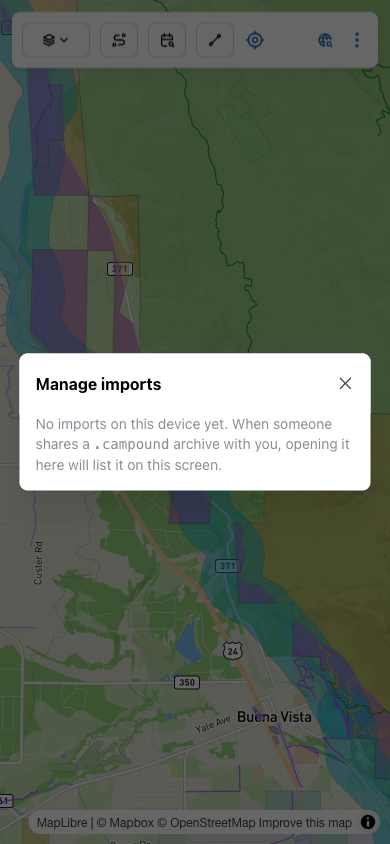
Once you've opened some bundles, each one shows up as a row with its name and what's inside:
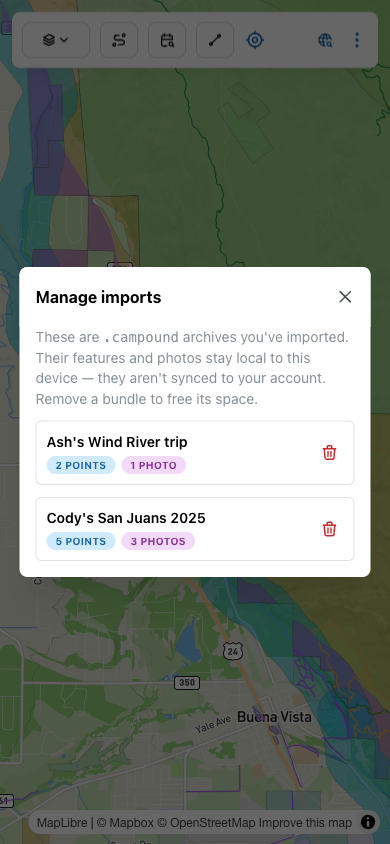
Removing a bundle deletes every point, line, and photo that came in with it — including the full-resolution photo originals. Your own data is never touched. There's a confirmation dialog with the bundle name and counts before the deletion goes through.
The bundle filter
Bigger picture: any of the "My" overlay layers (My spots, My routes, My photos) gets a Filter by type button next to it in the Layers menu when imported bundles are present. Tap it to open the "My data" filter, which has two sections side by side.
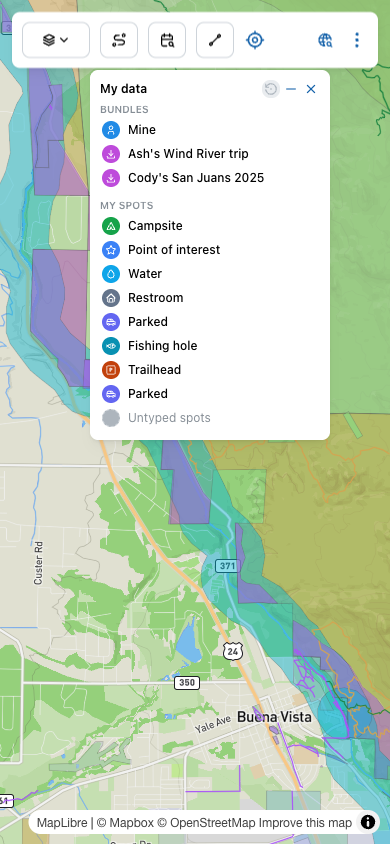
| Section | What it does |
|---|---|
| BUNDLES → Mine | Show or hide everything you created. Always present. |
| BUNDLES → <Each import> | Show or hide one specific imported bundle as a group. Tapping toggles every feature/photo from that bundle on or off. |
| MY SPOTS / MY ROUTES → <Each type> | Show or hide a Dictionary type. Affects both your own data and imported data of that type — they're treated as the same shape, different origin. |
Copy-to-my-data
When you want to edit, re-export, or otherwise treat an imported feature as your own — say, a campsite Cody marked that you want to keep using year after year — there's a Copy to my data action on each imported feature. It forks the feature: copies the full-resolution bytes (for photos) into your own Filesystem path, regenerates a thumbnail, and stores a fresh copy under your own ownership. The original imported bundle stays intact; the new copy belongs entirely to you.
How bundles stay safe
Three guardrails keep imports from polluting your data:
- Sync-skip. Imported features and photos never upload to your account, even if you're signed in. They live only on the device that opened the archive. (This prevents you from accidentally claiming Cody's data as your own.)
- Dictionary remap. If a bundle defines its own Dictionary types, those types are renamed internally on import so they can't collide with yours. The result: their "Campsite" type and your "Campsite" type stay separate, even if you both happened to use the same name.
- Tombstones. If you delete a bundle (or any feature/photo from it) and then re-import the same archive later, the deleted items don't come back — Campound remembers what you removed.