 Campound
Trip planner
Help guide · Updated June 25, 2026
Open the planner
Tap the Trip planner button in the toolbar — the luggage / itinerary icon between Layers and Find a spot.
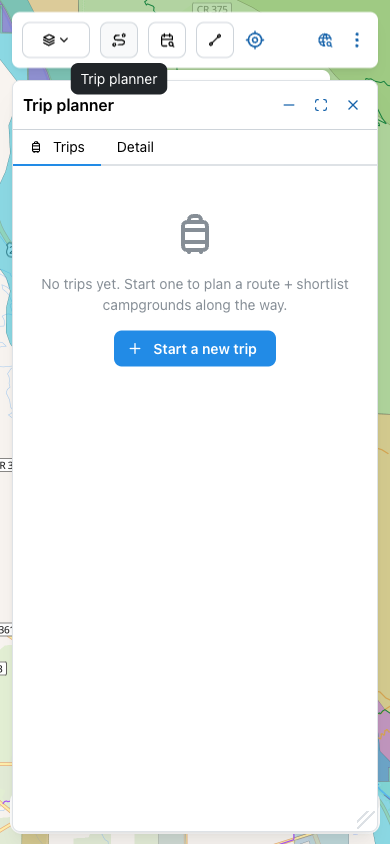
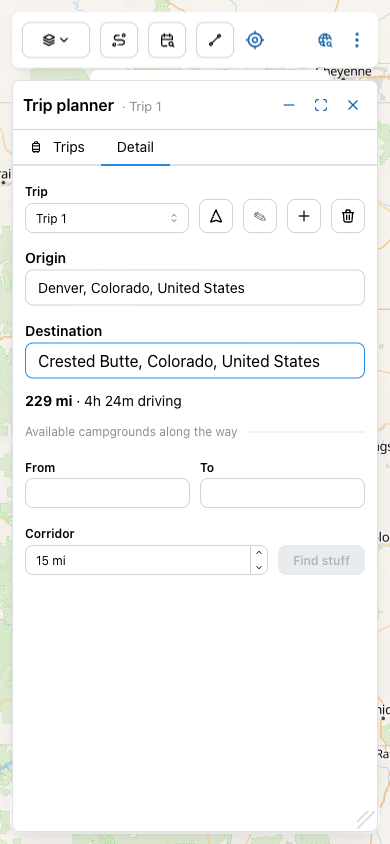
Tap + Start a new trip and you land on the Detail tab with a fresh trip ("Trip 1") waiting for an origin.
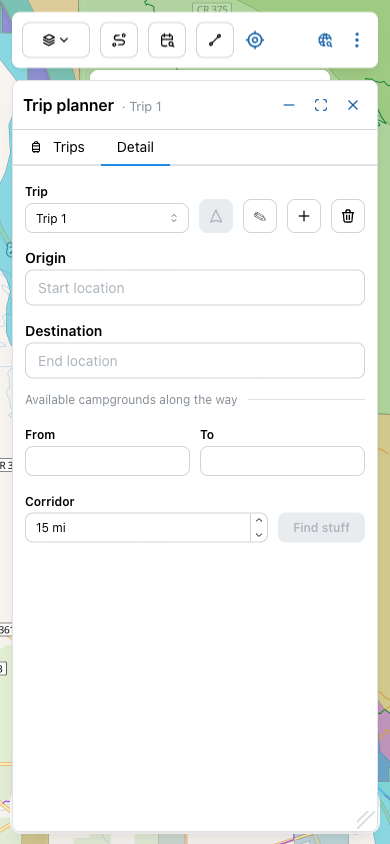
Origin and destination
Type a place name into Origin. Campound queries Mapbox for matches and shows an autocomplete dropdown — pick the one you mean.
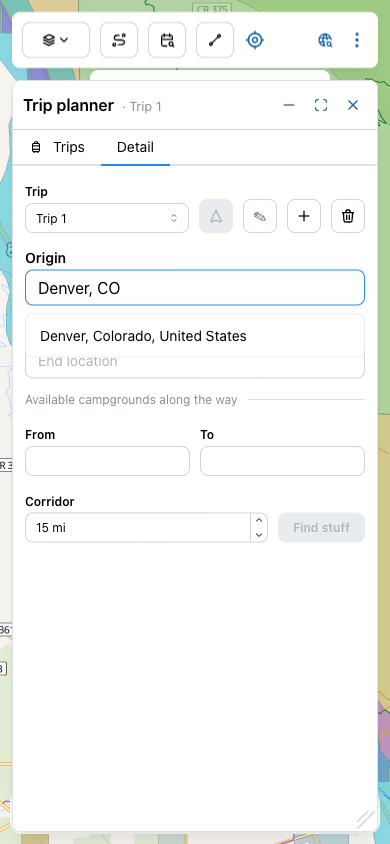
Once both fields are set, Campound draws a driving route between them on the map (using Mapbox directions) and shows the total distance and drive time inline.
Dates and corridor
Two more knobs decide what counts as "along the way":
- From / To — the date range of your trip. Campsites get checked against Recreation.gov for availability across these dates; sites with no nights available are filtered out.
- Corridor — the search width either side of the route, in miles. Default 15. Bump it up to surface destinations farther off-line; drop it down when there are too many results to think about.
Hit Find stuff (the button activates once origin, destination, and dates are all set). Campound scans the corridor for everything interesting and groups the results into tabs:
| Tab | What's in it |
|---|---|
| Campgrounds | Recreation.gov facilities within the corridor, filtered by date availability. Sorted by where they fall along the route. |
| Trails & routes | National Forest trails and vehicle routes within the corridor — places to hike, ride, or drive while you're in the area. |
| My spots | Points you've already drawn or imported that happen to fall in the corridor. Useful if you've been collecting waypoints for years. |
| My routes | Same idea for lines — trails or roads you've recorded or imported. |
| Shortlist | The items you've saved to this trip. Persists across Find stuff re-runs. |
Build the Shortlist
The Shortlist is the heart of the planner — it's the curated set of campgrounds and routes you actually plan to use on this trip, as opposed to the raw search results. From any result row in the other tabs, tap the rosette icon to add it to the Shortlist.
The benefits of shortlisting:
- Saved with the trip. Close the planner, come back tomorrow, your shortlist is still there. (Synced across devices if you're signed in.)
- Stays even if Find stuff is re-run. Tightening the corridor or shifting your dates won't drop your favorites — they just get marked "still in range" or "no longer in range."
- One-tap navigate. The Shortlist tab knows the order you want to hit places in; the Navigate action runs a multi-stop trip through them.
Multiple trips
The + button next to the trip name creates a new trip alongside the current one — same dialog, different route, separate shortlist. The dropdown to the left switches between them.
This is useful when:
- You're considering two different routes ("if we go via Aspen vs. via I-70") and want both sketched out.
- You have a long-term backlog (summer trip, fall trip, next-year-when-the-kids-are-older trip) and want to keep each one alive without losing the other.
- You're a guide or trip leader and you're managing multiple groups' plans at once.
The Trips tab at the top gives you the list of every trip you've created, with the trip name and origin/destination summary.
The action buttons
| Button | What it does |
|---|---|
| Navigate this trip (triangle) | Starts a multi-stop turn-by-turn navigation session that runs through the trip — origin, each shortlisted stop in order, destination. Same off-paved + watch + CarPlay behavior as single-destination navigation. Disabled until the trip has a destination or shortlist. |
| Rename trip (✎) | Change the trip's display name. The default is "Trip 1" / "Trip 2" / etc.; renaming to something meaningful ("Telluride loop", "Wind Rivers June") makes the dropdown easier to scan. |
| New trip (+) | Spin up a new empty trip alongside the current one. The new one becomes active automatically. |
| Delete trip (trash) | Remove the active trip and everything in its shortlist. Confirmation required. |